
How to add Outlook calendar to iPhone (3 ways)
The quickest way to see Outlook events on iPhone is to add your Microsoft account in Settings — your Outlook calendar then appears in the Calendar app. You can also subscribe to a published Outlook calendar link (read-only). If you want a planner that works with Outlook and your other calendars, use an app that shows them all in one place.
Which method fits your day?
| Method | Add Microsoft account in Settings | Subscribe with a calendar link | Outlook app | Dailer on iPhone Easiest on iPhone |
|---|---|---|---|---|
| What you get | Outlook calendar in the iPhone Calendar app | Read-only copy of one Outlook calendar | Outlook calendar inside the Outlook app | Outlook, Google and Apple together in one app (no copying between them) |
| Updates automatically | Yes | Yes, on the provider’s schedule | Yes | Yes, connected to each account |
| Can edit events | Yes, in the Calendar app | No (read-only) | Yes, in the Outlook app | Yes — create and delete events in any connected calendar, manually or with the AI assistant |
| Best for | Seeing Outlook events next to iCloud events | Following a calendar you don’t need to edit | Using Outlook mail and calendar in one app | Planning your day across all calendars |
Add Microsoft account in Settings
- What you get
- Outlook calendar in the iPhone Calendar app
- Updates automatically
- Yes
- Can edit events
- Yes, in the Calendar app
- Best for
- Seeing Outlook events next to iCloud events
Subscribe with a calendar link
- What you get
- Read-only copy of one Outlook calendar
- Updates automatically
- Yes, on the provider’s schedule
- Can edit events
- No (read-only)
- Best for
- Following a calendar you don’t need to edit
Outlook app
- What you get
- Outlook calendar inside the Outlook app
- Updates automatically
- Yes
- Can edit events
- Yes, in the Outlook app
- Best for
- Using Outlook mail and calendar in one app
Dailer on iPhone
- What you get
- Outlook, Google and Apple together in one app (no copying between them)
- Updates automatically
- Yes, connected to each account
- Can edit events
- Yes — create and delete events in any connected calendar, manually or with the AI assistant
- Best for
- Planning your day across all calendars
Method 1 — Add your Outlook account to the iPhone Calendar app
- Open Settings, tap Apps, then tap Calendar.
- Tap Calendar Accounts, then tap Add Account.
- Choose Outlook.com for a personal account or Microsoft Exchange for a work or school account.
- Sign in and allow access.
- Keep Calendars turned on (turn off Mail or Contacts if you only need the calendar), then tap Save.
By default, Mail, Contacts, Calendars and Reminders are all turned on — switch off what you don’t need. For a work account, your organization may have its own setup rules.
Method 2 — Subscribe to a published Outlook calendar
- In Outlook on the web, go to SettingsCalendarShared calendars → Publish a calendar. Choose the calendar and detail level, select Publish and copy the ICS link.
- On iPhone, open SettingsAppsCalendarCalendar AccountsAdd AccountOtherAdd Subscribed Calendar.
- Paste the ICS link and save.
A subscribed calendar is read-only and updates on the provider’s schedule, not instantly.
Method 3 — Use the Outlook app
- Install Microsoft Outlook from the App Store.
- Open it, tap SettingsAccountsAdd AccountEmail Account.
- Sign in with your Outlook account.
This keeps Outlook inside its own app. To see Outlook next to Google or Apple calendars, use Method 1 or a calendar app that connects them all.
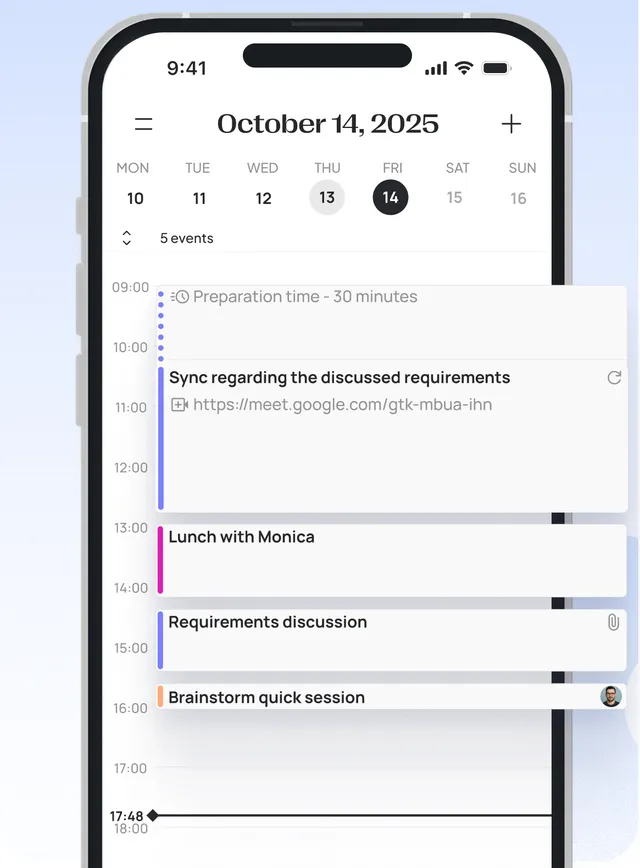
A planner that works with Outlook: Dailer on iPhone
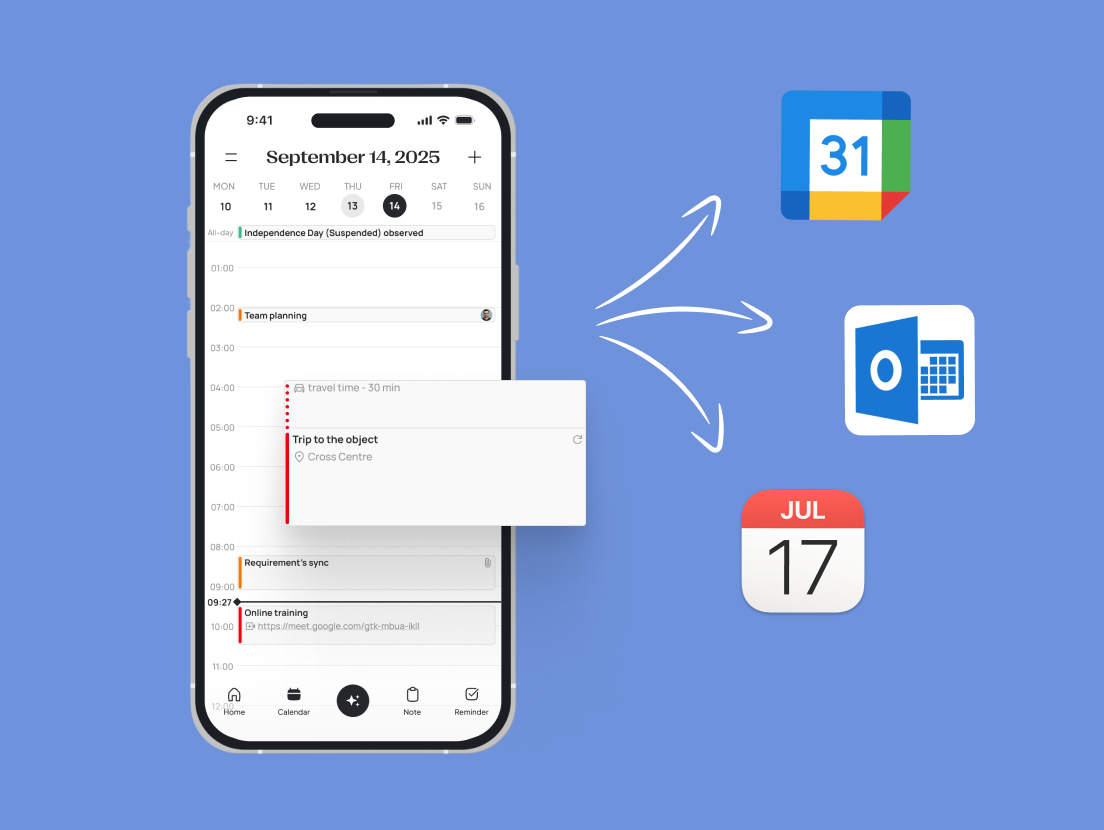
Connect Google, Outlook and Apple accounts to one timeline. Free includes 1 calendar account; Pro includes unlimited accounts. The AI assistant finds free time and avoids overlaps across all connected calendars. Create or move events by chat, or by voice with Pro. Create or delete events in any of your connected calendars right from Dailer — by hand or by asking the AI assistant. The event is saved to the calendar you pick, so you’ll see it in Google Calendar, Outlook or Apple Calendar too.
Dailer doesn’t copy events from one calendar to another.
Free: $0. Pro: $6.99 per month or $71.90 per year, with a 7-day free trial.
Start free. Upgrade when you need more.
Prices in US dollars. The App Store shows your local currency.
Free
$0
- 1 calendar account
- Notes and reminders
- AI chat with a weekly limit
Pro
$5.99/month, billed yearly
or $6.99 billed monthly
- Unlimited calendars and AI chat
- Voice assistant
- All tags and full analytics
Questions about Outlook calendar on iPhone
Why don’t my Outlook events show on iPhone?
Check that the account is added under Settings → Apps → Calendar → Calendar Accounts and that Calendars is turned on for it. Microsoft notes that since 1 March 2026, devices using Exchange ActiveSync versions lower than 16.1 can no longer connect to Outlook.com.
Can I edit Outlook events from my iPhone?
Yes when you add the account in Settings or use the Outlook app. A calendar added by subscription link is read-only.
Is there a daily planner app that works with Outlook?
Yes, for example Dailer. It connects Outlook, Google and Apple calendars on one timeline, and you can create or delete events in any of them manually or by asking the AI assistant.
Can I see Outlook and Google calendars together on iPhone?
Yes. Add both accounts in Settings and the Calendar app shows them together, or use an app like Dailer that also lets you plan across them with AI.
Does Dailer copy events between Outlook and other calendars?
No. You see all connected calendars together and can create or delete events in any of them; each event is saved to the calendar you choose.